

A slow computer can be incredibly frustrating, impacting your productivity and overall experience. If you’re looking to enhance your computer’s performance and get things running smoothly again, you’re in the right place.
5 powerful tips to speed up your slow computer, helping you boost its efficiency and performance with minimal effort. By implementing these solutions, you’ll notice a significant improvement in your computer’s speed and responsiveness. Let’s dive into these essential tips and get your computer back to its optimal performance.
5. Upgrade Hardware Components
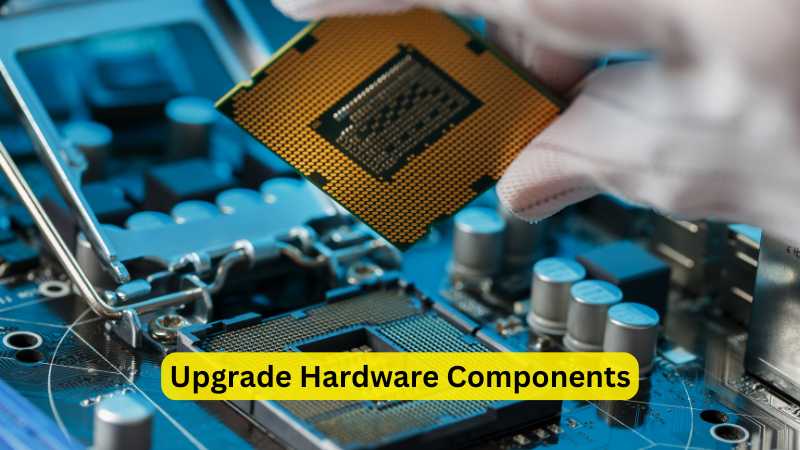
If your computer remains slow despite following the above tips, it may be time to consider hardware upgrades. Upgrading certain components can significantly enhance your computer’s performance and speed.
Common Hardware Upgrades:
- Add More RAM: Increasing your computer’s RAM can improve its ability to handle multiple applications and large files simultaneously.
- Upgrade to an SSD: Replacing a traditional hard drive with a solid-state drive (SSD) can drastically improve boot times and application loading speeds.
- Enhance Graphics Card: For gaming or graphic-intensive tasks, upgrading your graphics card can enhance performance and speed.
Hardware upgrades can provide a substantial performance boost and extend the life of your computer.
4. Perform a System Scan for Malware
Malware and viruses can severely impact your computer’s performance, causing it to run slowly and erratically. Performing a regular system scan for malware is essential for maintaining a fast and responsive computer.
Steps for Malware Scanning:
- Run Antivirus Software: Use reputable antivirus software to scan your system for viruses, spyware, and other malicious threats.
- Update Antivirus Definitions: Ensure your antivirus software is up-to-date with the latest virus definitions for accurate detection and removal.
- Consider a Full System Scan: Perform a thorough, full system scan to identify and remove any hidden malware.
Regular malware scans will help keep your computer clean and running at its best.
3. Manage Startup Programs

Many programs are set to start automatically when your computer boots up, which can significantly impact its startup time and overall performance. Managing these startup programs can help speed up your slow computer and reduce the time it takes for your system to become fully operational.
How to Manage Startup Programs:
- Disable Unnecessary Startup Programs: In Windows, open Task Manager and navigate to the Startup tab. In macOS, go to System Preferences > Users & Groups > Login Items. Disable programs that you don’t need to start automatically.
- Use System Optimization Tools: Consider using third-party system optimization tools to manage and optimize startup programs.
By controlling which programs run at startup, you can reduce system load and speed up your computer’s boot time.
2. Update Your Software and Drivers
Keeping your software and drivers up-to-date is crucial for maintaining optimal computer performance. Updates often include bug fixes, performance enhancements, and security patches that can help speed up your slow computer.
Steps to Update Software and Drivers:
- Check for System Updates: Ensure your operating system is up-to-date by checking for system updates in Windows Update or macOS Software Update.
- Update Drivers: Visit your hardware manufacturer’s website to download and install the latest drivers for your graphics card, network adapter, and other essential components.
- Update Applications: Regularly update your installed software applications to benefit from performance improvements and new features.
By keeping everything updated, you ensure your computer runs smoothly and efficiently.
1. Clean Up Your Hard Drive
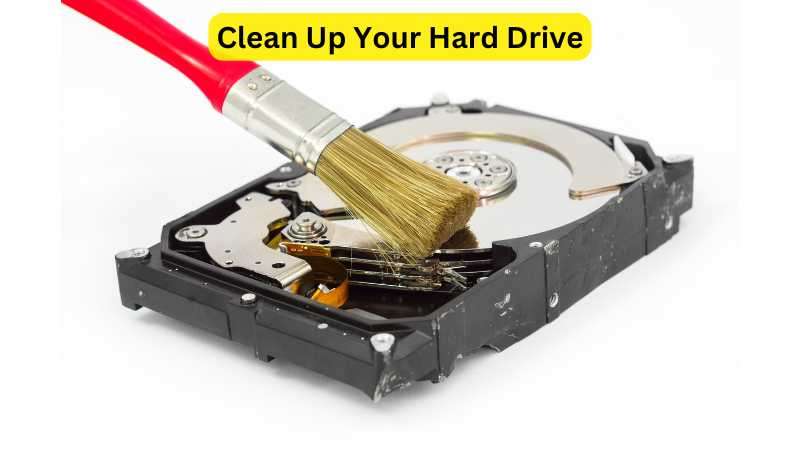
One of the most effective ways to speed up your slow computer is by cleaning up your hard drive. Over time, your computer accumulates temporary files, old downloads, and unnecessary system files that can slow down its performance.
How to Clean Up Your Hard Drive:
- Remove Unnecessary Files: Delete files you no longer need and clear out the Downloads and Documents folders.
- Uninstall Unused Programs: Go through your list of installed applications and remove those you no longer use.
- Use Disk Cleanup Tools: Utilize built-in tools like Disk Cleanup (Windows) or Optimize Storage (macOS) to remove temporary files and system caches.
Regularly cleaning up your hard drive will help free up valuable disk space and improve your computer’s performance.
Speeding up a slow computer involves a combination of software maintenance and potential hardware upgrades. By following these 5 powerful tips—cleaning up your hard drive, updating software and drivers, managing startup programs, performing malware scans, and considering hardware upgrades—you can significantly improve your computer’s performance and efficiency.
Implementing these strategies will help ensure your computer runs smoothly and effectively, providing a better overall user experience. Regular maintenance and timely upgrades are key to keeping your computer in top shape and avoiding performance slowdowns in the future.